A. Easy App Installation Guide
To run Rovaflow, simply download and install our easy Windows app on your desktop computer. The app connects to your phones and streams their screens in real-time right onto your dashboard.
⚙️ Safe and Secure Phone Connection
Rovaflow is designed to be completely safe. Our Windows app runs on your own computer and creates a secure connection directly with your connected phones. Everything is private and isolated, meaning your personal details and account data never leave your system.
⚡ Computer Setup Recommended
- System: A modern Windows 10 or 11 computer (64-Bit).
- Processor: A standard Intel Core i5/i7 or AMD Ryzen processor.
- Memory: 16 GB of memory (or 32 GB if you are connecting more than 100 phones).
- USB Connection: Powered USB hubs to plug in all your phones.
📦 Easy Preparations
- Standard phone drivers installed on your computer.
- Windows permissions allowed to let the app connect to your phones.
- Our easy Rovaflow Windows installation app.
B. Keys & Secure Computer Lock
To keep your subscription safe and ensure high performance, each license key is paired with the computer you install the app on. This secure link acts as a safeguard, protecting your account from unauthorized access.
🔒 Secure Computer Safeguard
When you start the app for the first time, it securely checks your computer's built-in details (like your computer's brand and model) to create a private digital lock. This lock links your license key strictly to your main computer, preventing others from copying or stealing your setup.
⚡ Safe Key Details
- Secure Lock: Automatic pairing with your desktop computer.
- Connection: Fully secure private transmission to check your key.
- Checks: Automatic checks in the background to keep things running.
📋 Simple Access Rules
- Each subscription license key is used for 1 computer at a time.
- Keeps your account secure by preventing others from using your key elsewhere.
- Moving your setup to a new computer is simple and can be done once a month directly in your portal.
1. Central Control Screen
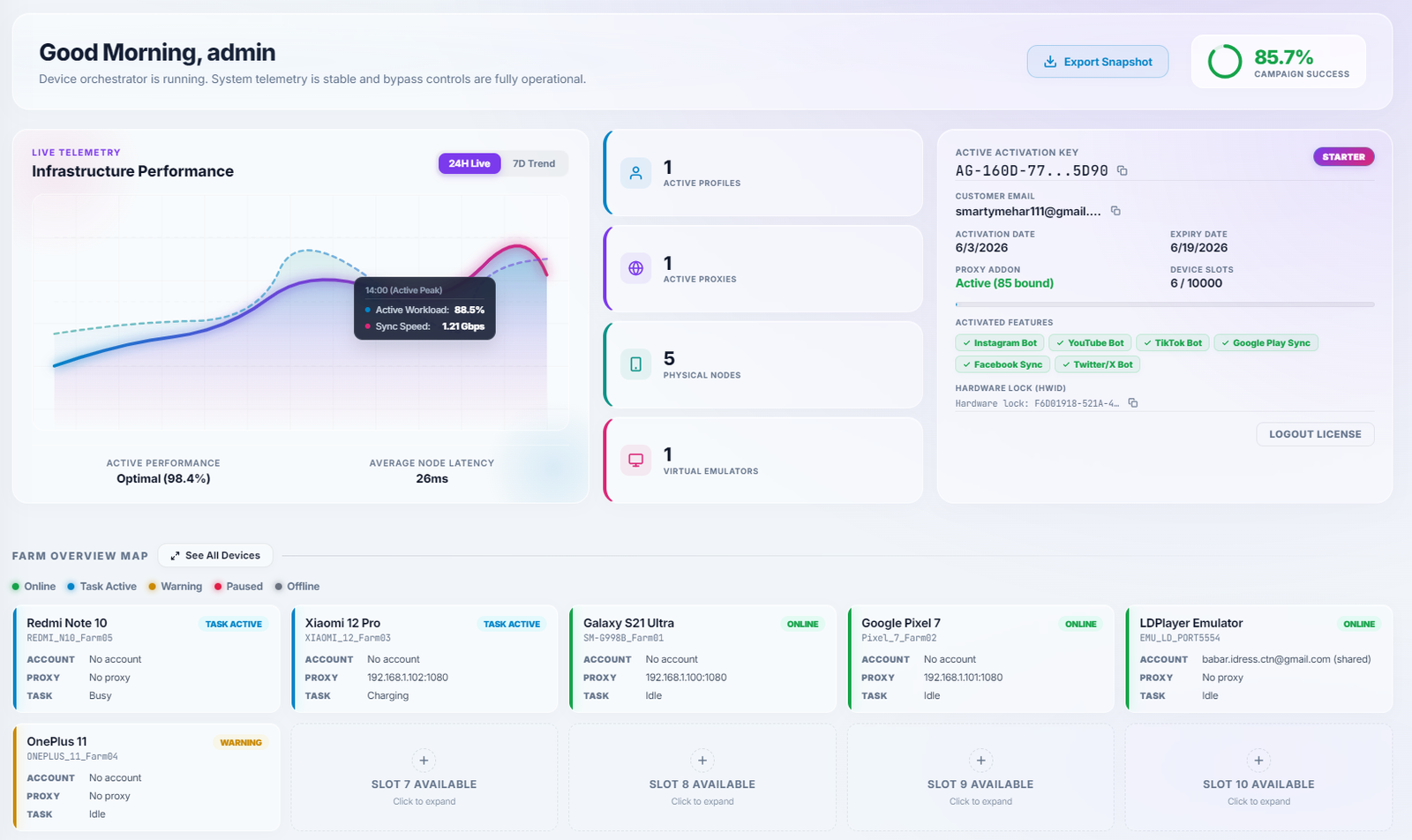
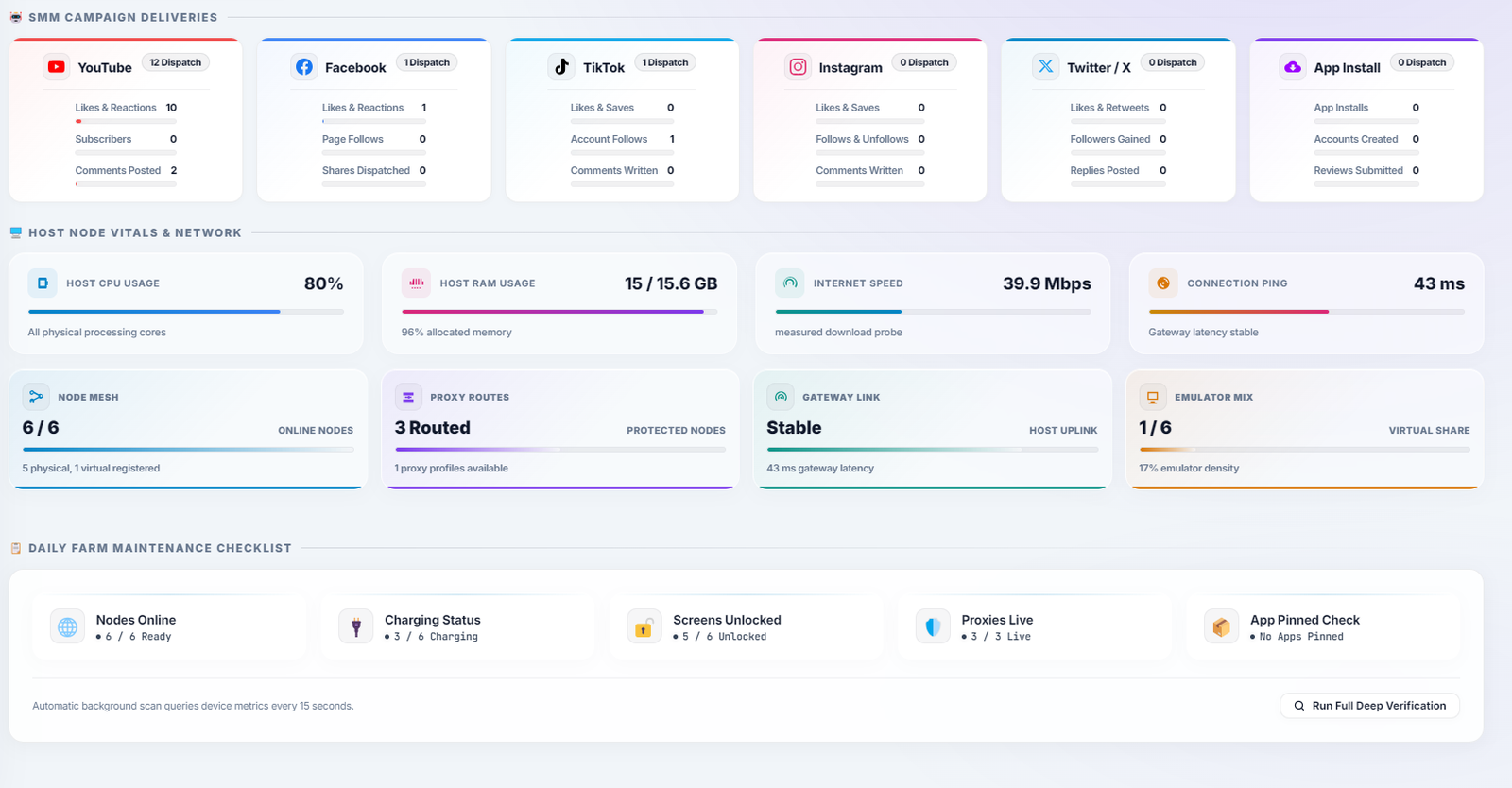
This is your main control room. It gives you an instant, easy-to-read view of your connected phones, computer performance speeds, live activity updates, and support messages.
📊 How It Works & Live Activity Monitoring
The central control screen communicates constantly with your Windows app. It monitors your computer's memory and CPU usage, tracks your internet connection speeds, and displays active statuses for every connected phone.
⚡ Simple Requirements
- An active license key loaded in your app.
- Phones connected to your computer via USB cables.
- A standard computer with Intel Core i5 or AMD Ryzen processor.
🏆 Key Benefits
- Instant phone status updates on your screen.
- Runs lightweight to keep your computer cool and fast.
- One-click speed booster to clean temporary files easily.
Activation & How To Use
Start the Windows App
Launch the Rovaflow program on your computer to link your phones.
Open Your Dashboard
Log in to your online portal. The screen automatically syncs with your running Windows app.
Check Your Performance
Keep an eye on the CPU and memory speed bars to make sure your computer is running smoothly.
2. USB & Phone Connection Hub
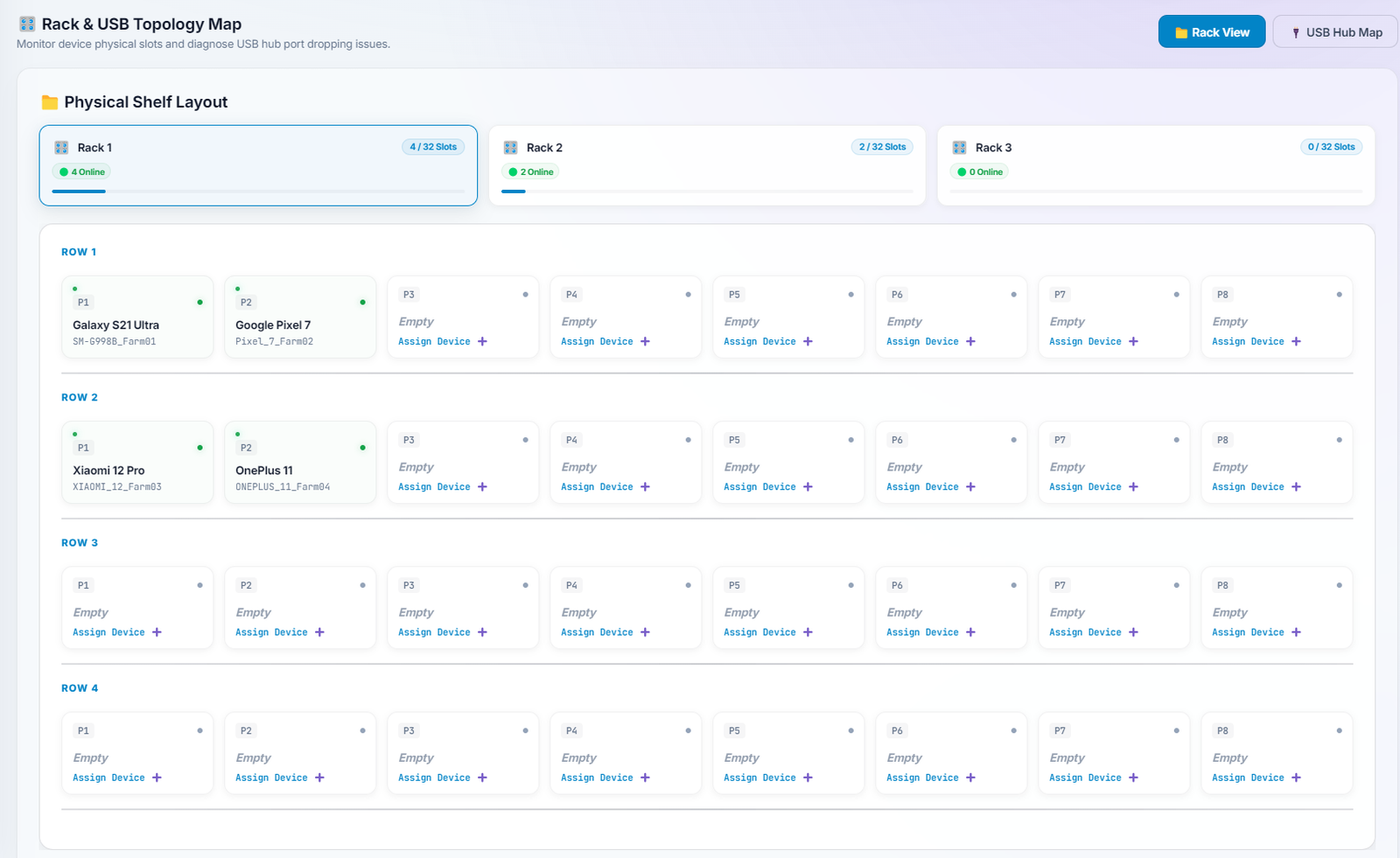
Displays and manages your physical phone connections, including charging levels, phone serial numbers, and USB port speeds across your connection racks.
📊 How It Works & Phone Detection
The connection hub works with your Windows system to recognize new phones instantly. It automatically checks phone charging speeds and manages USB power, making sure your phones stay connected securely without any manual setup.
⚡ Connection Requirements
- Good quality, powered USB hubs to connect multiple phones.
- Standard USB connection drivers installed on your computer.
- Standard 'USB Connection' allowed in your mobile phone settings.
🏆 Key Benefits
- Detects and connects new phones in under 3 seconds.
- Pairs each connected phone screen with its unique setup details.
- Prevents phones from disconnecting by managing USB power dynamically.
Activation & How To Use
Plug in Your USB Hub
Plug your powered USB hub into a standard USB port on your desktop computer.
Allow USB Connection on Phone
Open your phone's settings, enable the standard 'USB Debugging' option, and tap 'Allow' on the confirmation box.
Scan and Connect
Click 'Scan Connected Phones' in the dashboard. Your phones will display instantly on your screen and link up automatically.
3. Multi-Phone Screen Wall
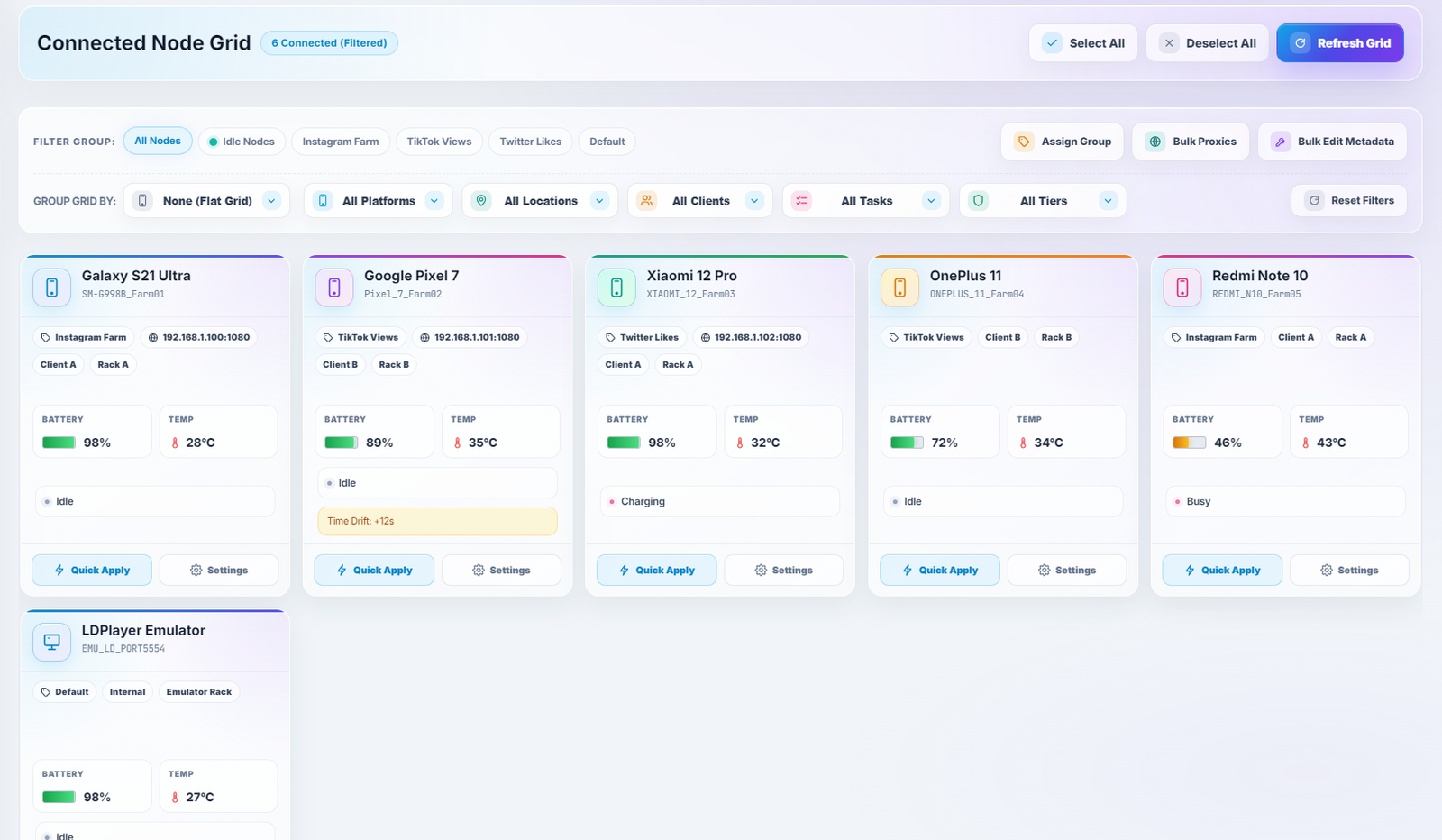
Watch all your phone screens live on one simple screen. Perfect for viewing dozens or hundreds of connected phones side-by-side as they run your social media campaigns.
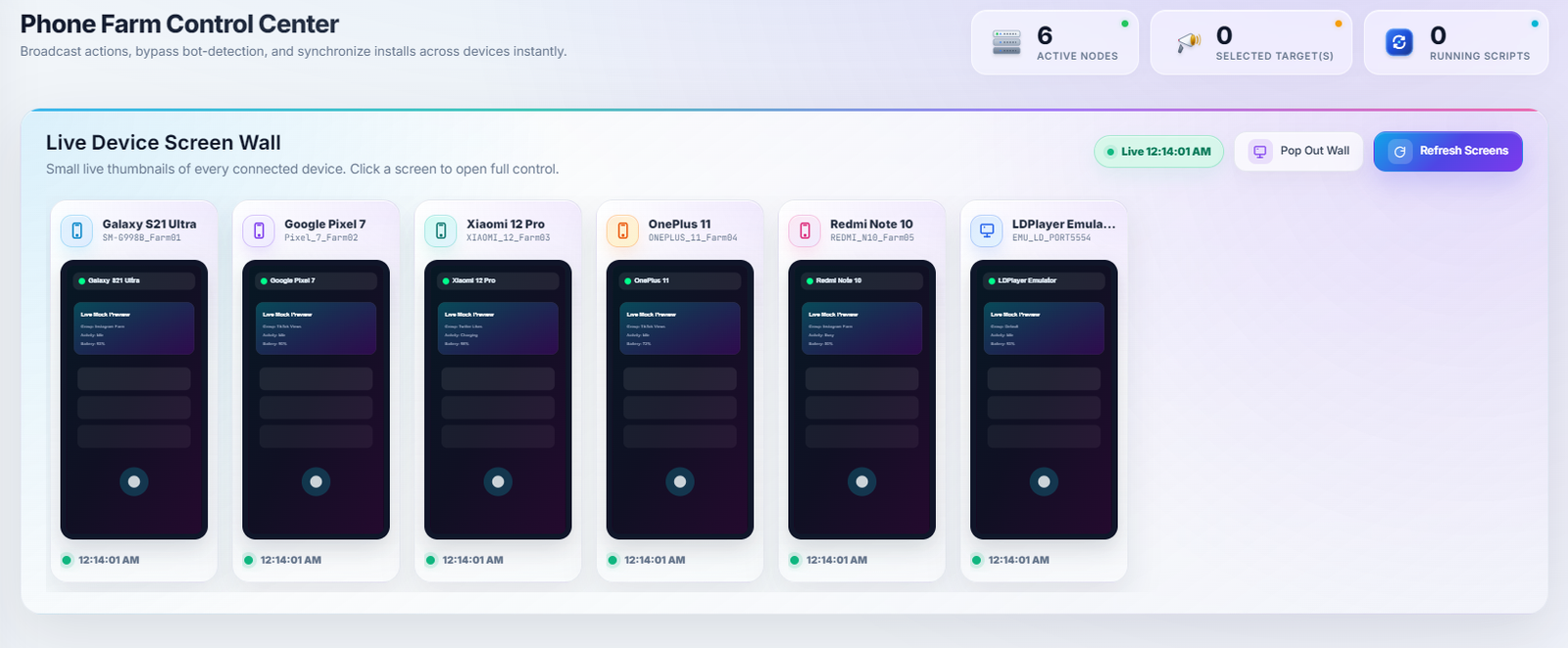
📊 How It Works & Screen Streaming
Uses smart, high-speed streaming technology to bring each phone screen to your web browser live. It automatically adjusts the video quality to keep everything running smoothly without slowing down your office internet or computer.
⚡ Connection Requirements
- Standard desktop computer capable of displaying streaming video.
- A standard modern computer graphics card (like NVIDIA or AMD).
- Computer setup configured to display standard video speeds (15 to 30 frames per second).
🏆 Key Benefits
- Watch dozens of active phone displays at the exact same time without any screen lag.
- Click or tap directly on any phone's small preview box to control it.
- Extremely lightweight video streaming that keeps your computer cool and fast.
Activation & How To Use
Open the Screen Wall
Navigate to the 'Screen Wall' tab on your control screen to turn on the live streaming for all connected phones.
Choose Video Quality
Easily adjust the video size and speed. Use lower video quality settings if you are showing a massive wall of over 200 phones.
Control Your Phones Directly
Just click on any phone preview screen to open detailed controls, swipe, scroll, or type on that phone immediately.
4. Control All Phones at Once
Control all your phones at the exact same time. Choose any phone to be your 'Main Phone'. Any clicks, scrolls, or typing you do on its screen will automatically repeat across every other connected phone with natural, randomized human timing.
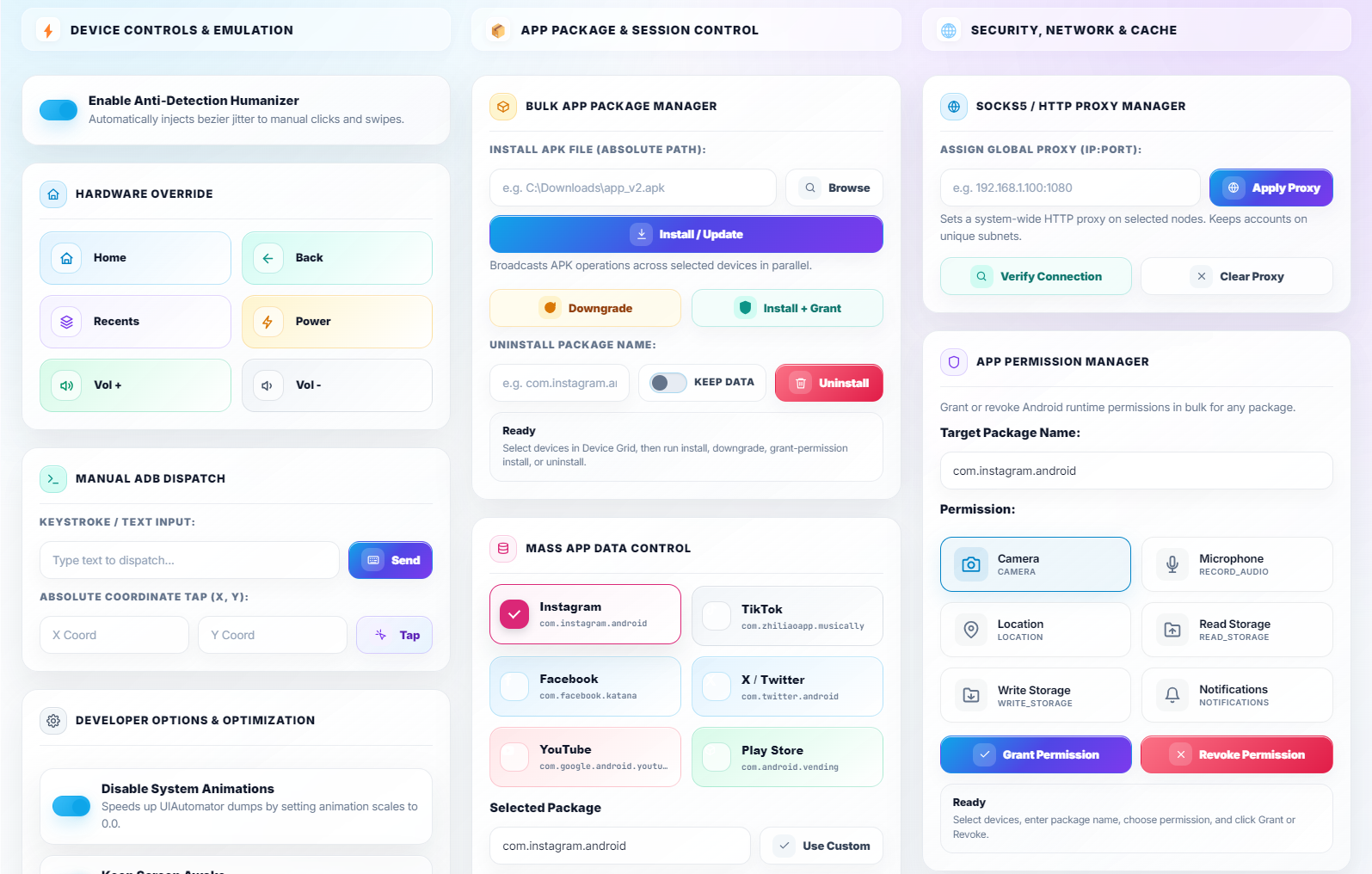
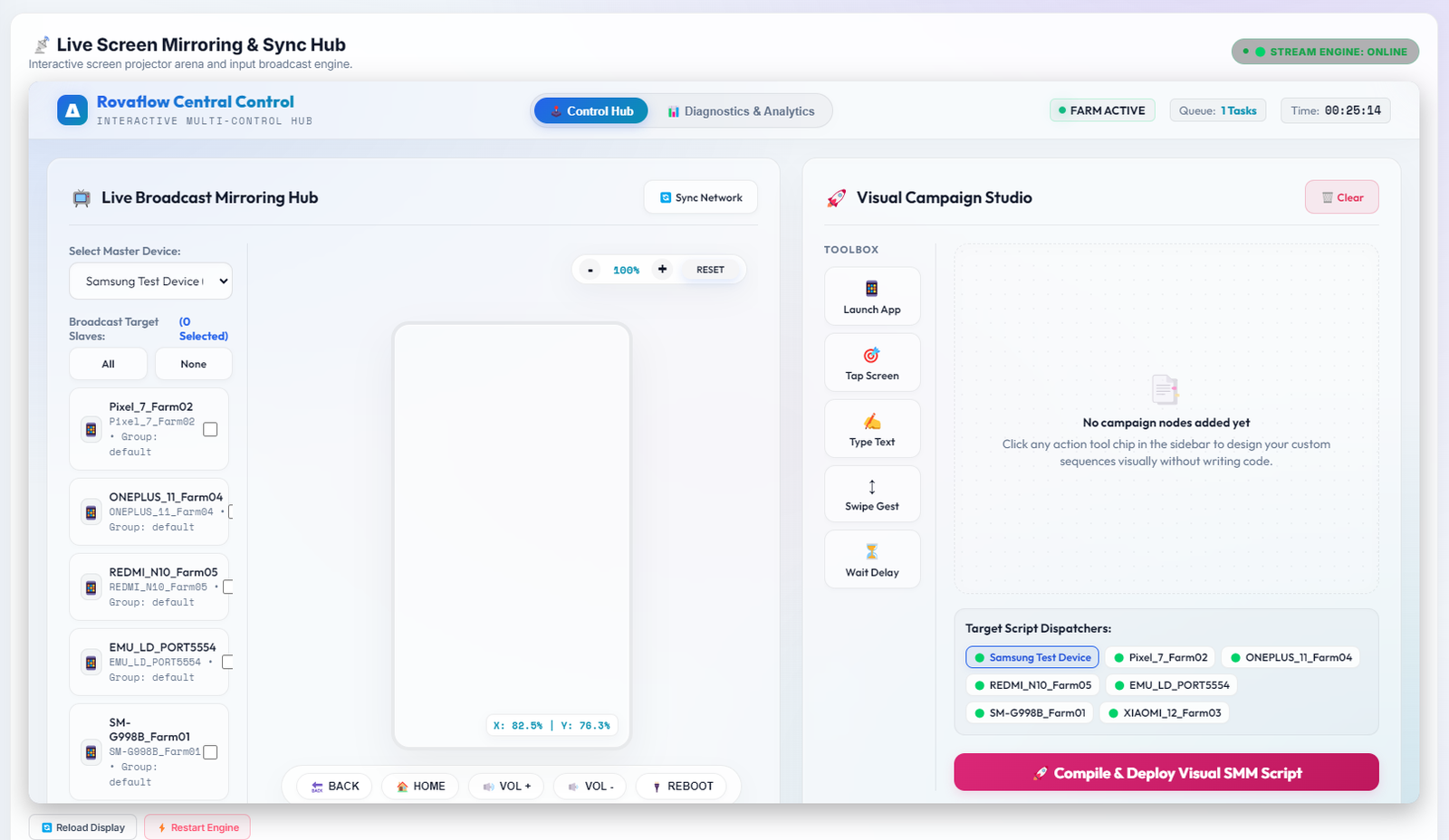
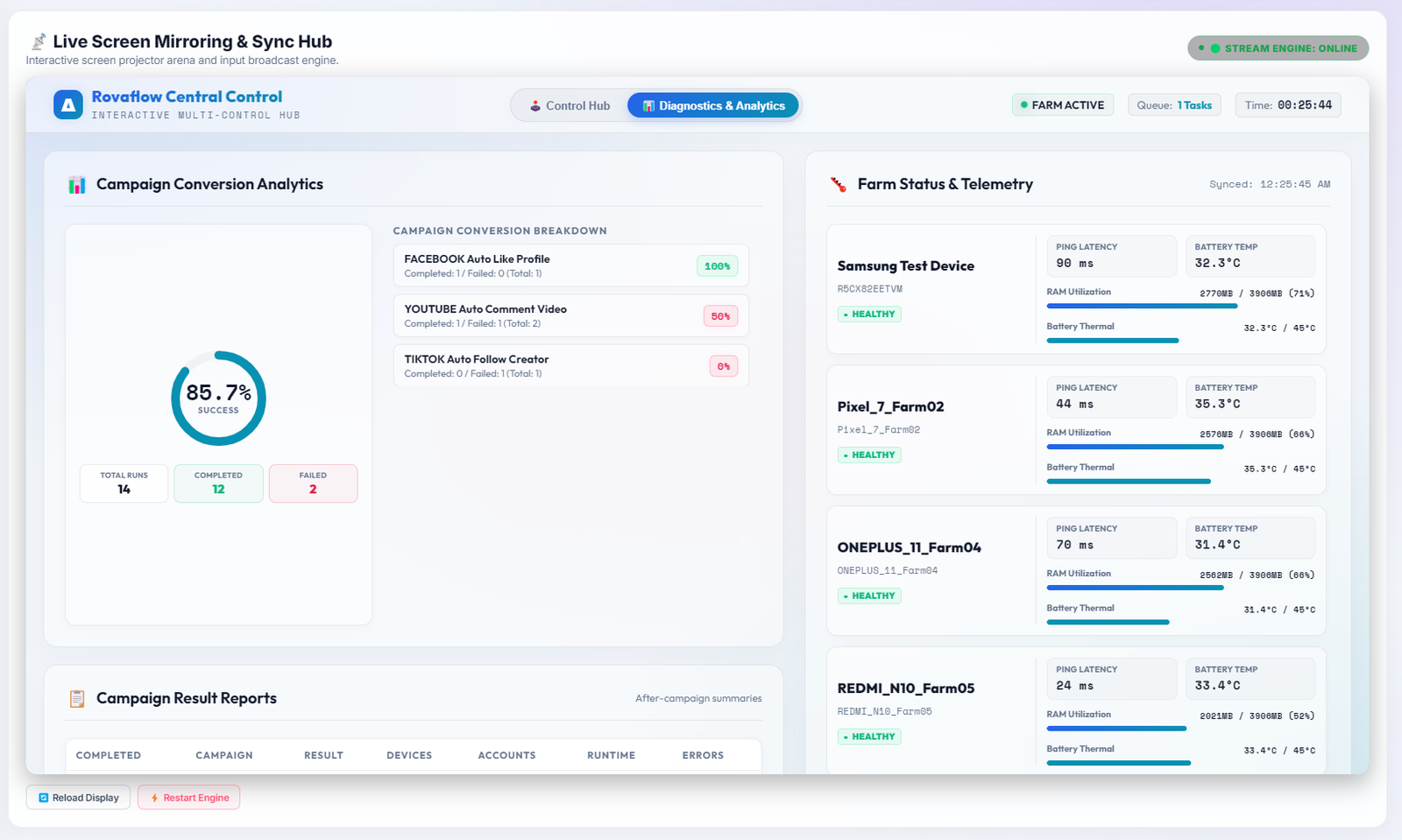
📊 How It Works & Multi-Control
The system tracks your clicks and swipes on the Main Phone, automatically adjusts them to fit different phone screen sizes, and instantly repeats the actions on all other phones. It includes slight random delays and tap offsets to ensure the actions look 100% human-like.
⚡ Requirements
- One connected active phone selected as your Main Phone.
- Multi-control syncing turned on in your dashboard.
- Screen adjustment enabled so actions align perfectly on different phone sizes.
🏆 Key Benefits
- Do an action on just 1 phone and have it repeat on up to 1,000 phones instantly.
- Slight, natural tap differences prevent social networks from flags or account bans.
- Saves you hundreds of hours by eliminating the need to set up each phone one-by-one.
Activation & How To Use
Pick Your Main Phone
Find the phone you want to use as your lead controller, then click 'Set as Main Phone' on its preview card.
Turn On Multi-Control
Turn on the 'Control All Phones' switch and check the boxes for all other phones you want to follow along.
Enable Human Timing
Turn on 'Random Tap Delay' and 'Natural Tap Movement' to make sure each phone acts with a slightly unique delay for safety.
5. Private Proxy Internet
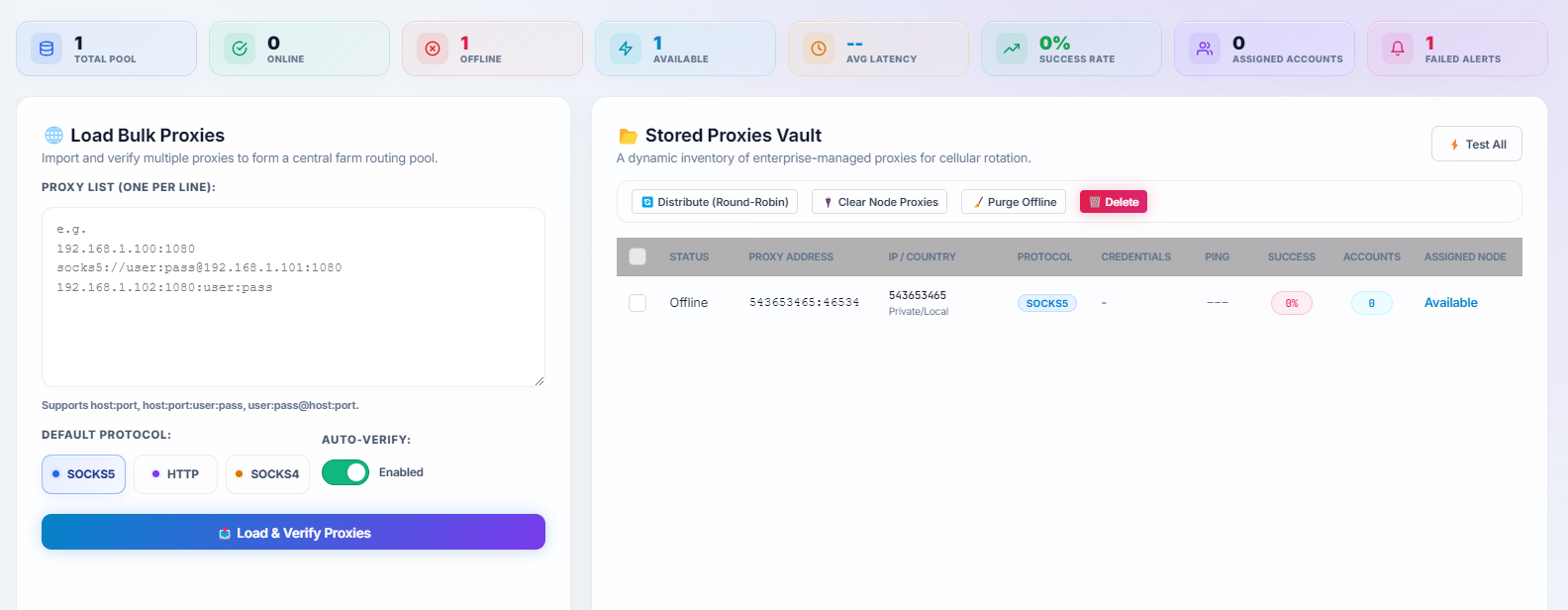
Give every phone its own private, secure internet address. Easily connect mobile, rotating, or residential proxy services to individual phones, ensuring their web traffic is completely separated.
📊 How It Works & Phone Privacy
The system routes each phone's internet connection through a separate, private tunnel. Instead of sharing your home or office internet network, each phone appears to be in a completely different city or region, keeping them completely safe from security sweeps.
⚡ Requirements
- Active private proxies (provided as standard text: address, port, username, password).
- Your internet router allowed to connect to outside private networks.
- Standard proxy connections allowed on your computer's internet.
🏆 Key Benefits
- No need to configure complicated internet settings on each individual physical phone.
- The system checks that each proxy is working and secure before your campaigns start.
- Keeps your different phone groups completely separate, so one phone's issue never affects another.
Activation & How To Use
Add Your Private Internet List
Upload your proxy list file (supporting standard formats) directly into the Private Proxy screen.
Test the Connections
Click 'Test Connection'. The system will quickly verify that each private internet address is active, fast, and secure.
Bind and Secure
Select your target phones and click 'Bind Proxy'. All of those phones will instantly start using their assigned private internet addresses.
6. Secure Social Profile Manager
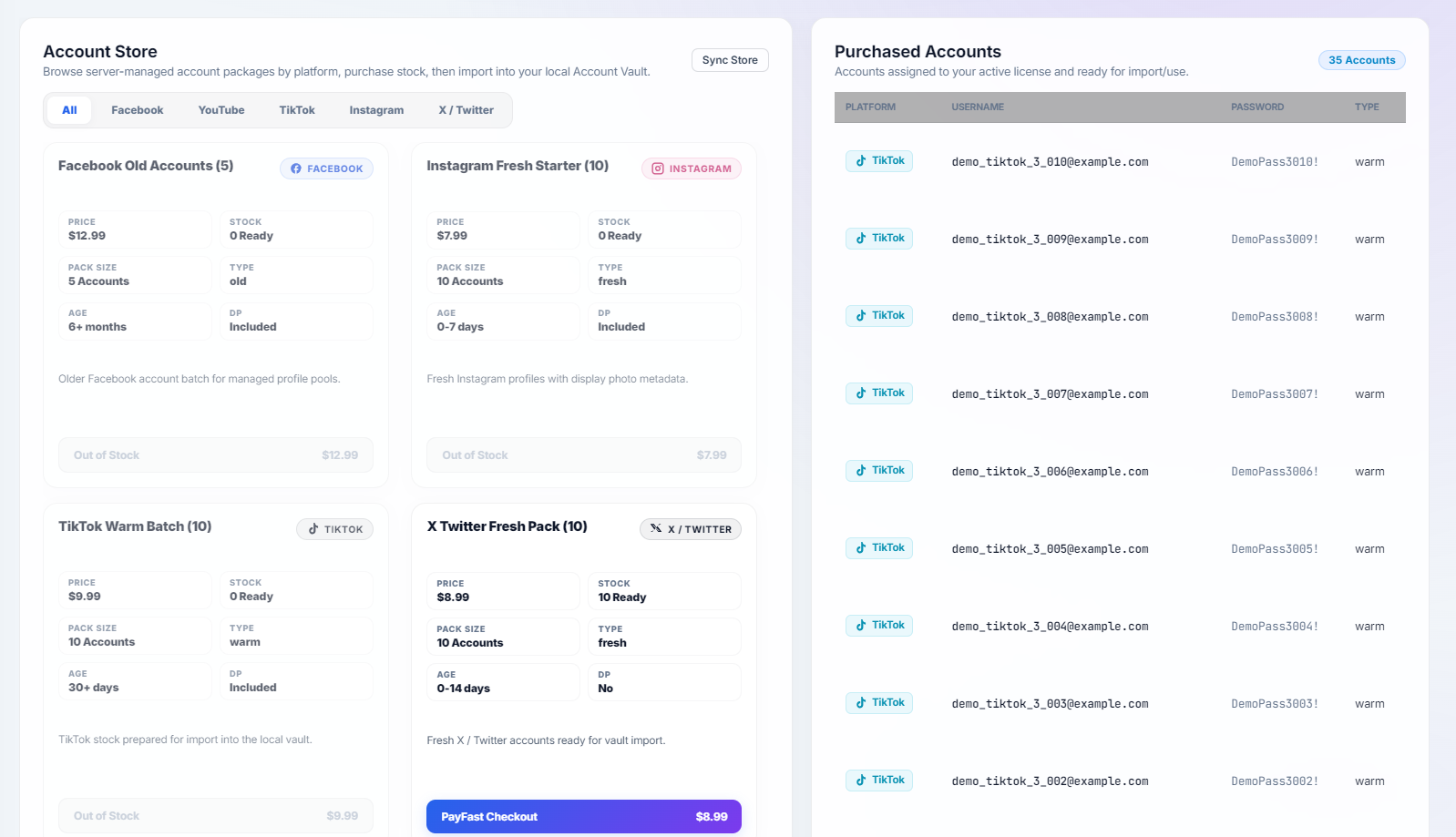
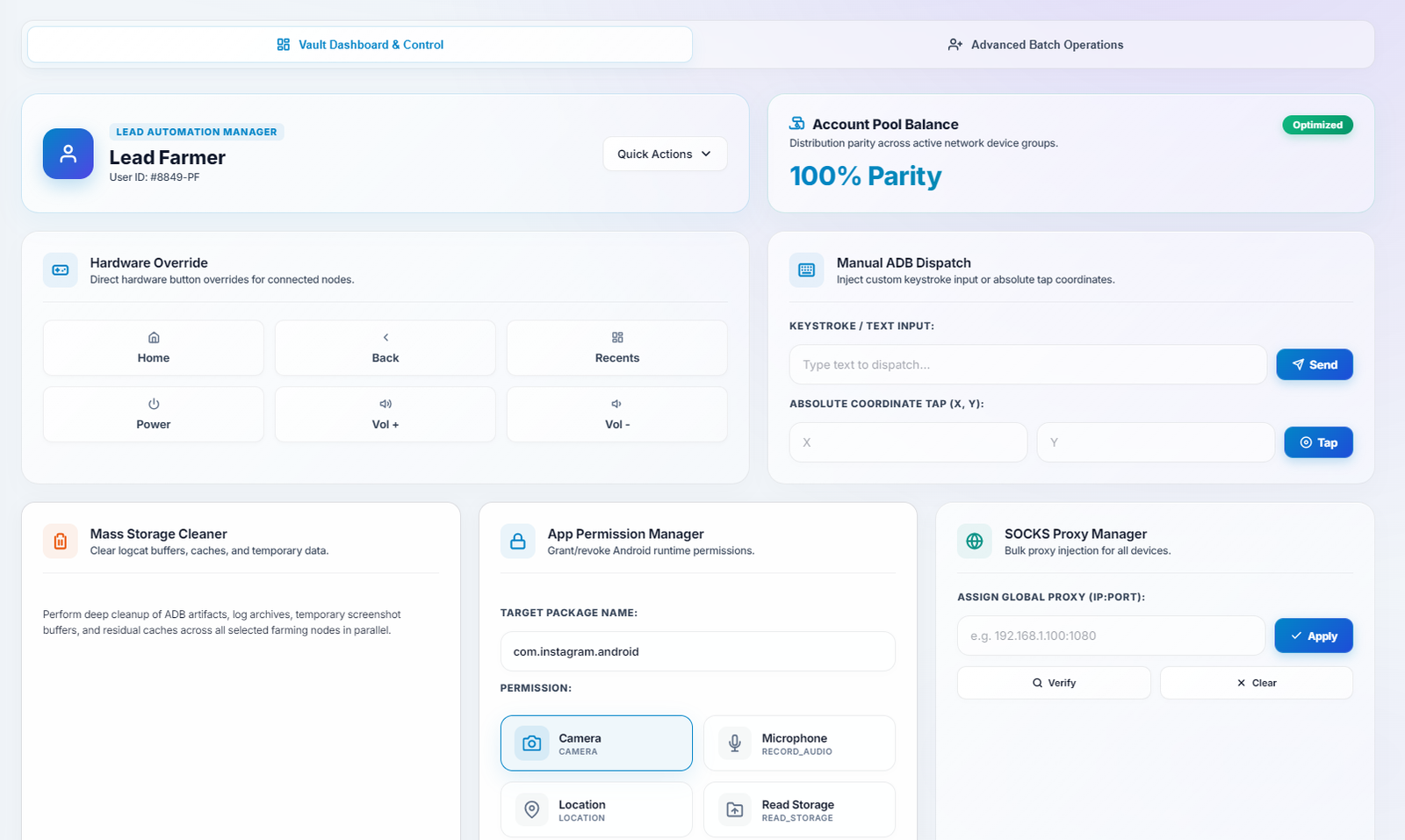
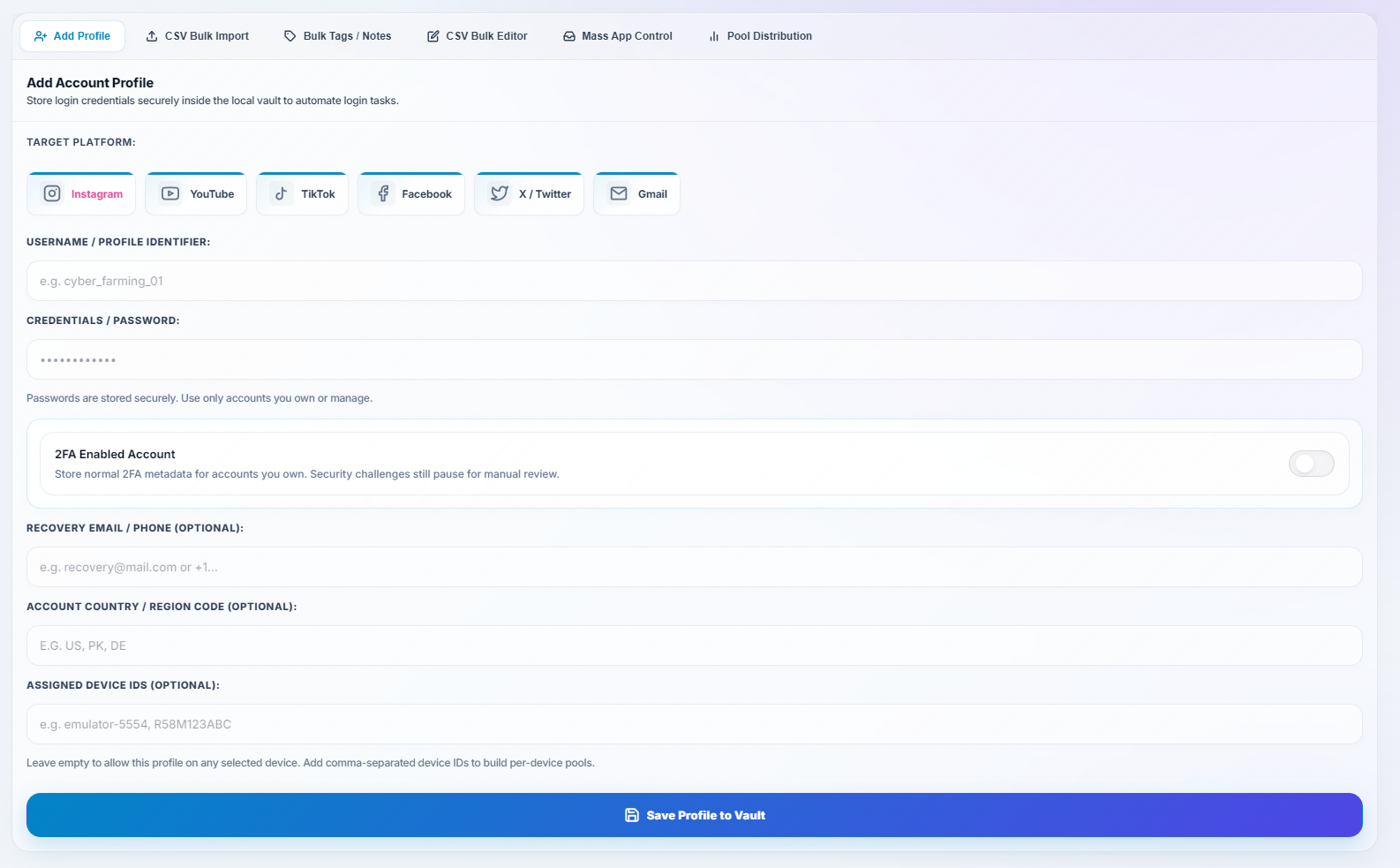
A secure, encrypted space to store all your social media logins, profile details, and account details. Easily import accounts in bulk, log in automatically with smart verification code generators, and keep your login sessions active and healthy.
📊 How It Works & Account Protection
The profile vault securely keeps your usernames and passwords encrypted on your computer. When logging into social apps like Instagram or TikTok, the system automatically reads login screens, inputs your login details, retrieves and inputs any 2FA verification codes, and logs you in seamlessly.
⚡ Requirements
- Your social account list loaded as a standard spreadsheet file (CSV format).
- Security keys kept safe locally on your own computer.
- An active private internet address matched to each profile's correct country or city.
🏆 Key Benefits
- Secure, high-level encryption that keeps your passwords and details 100% safe.
- Saves you from manual typing by getting and filling verification codes automatically.
- Maintains active app logins so you never get logged out or trigger security alerts.
Activation & How To Use
Import Your Account Spreadsheet
Click 'Import Accounts' in the Profile screen, and easily drag-and-drop your social account CSV spreadsheet.
Link Accounts to Your Phones
Select your social media accounts and easily assign them to your physical phones with one click.
Run One-Click Logins
Click 'Deploy Accounts'. The system will log into each social media app on your phone screens, handling all checks and logins automatically.
7. Automated Task Planner
An easy visual calendar and task scheduler. Easily plan your post queues, schedule automatic swipes and clicks, set up run-times, and manage all your phone campaigns smoothly.
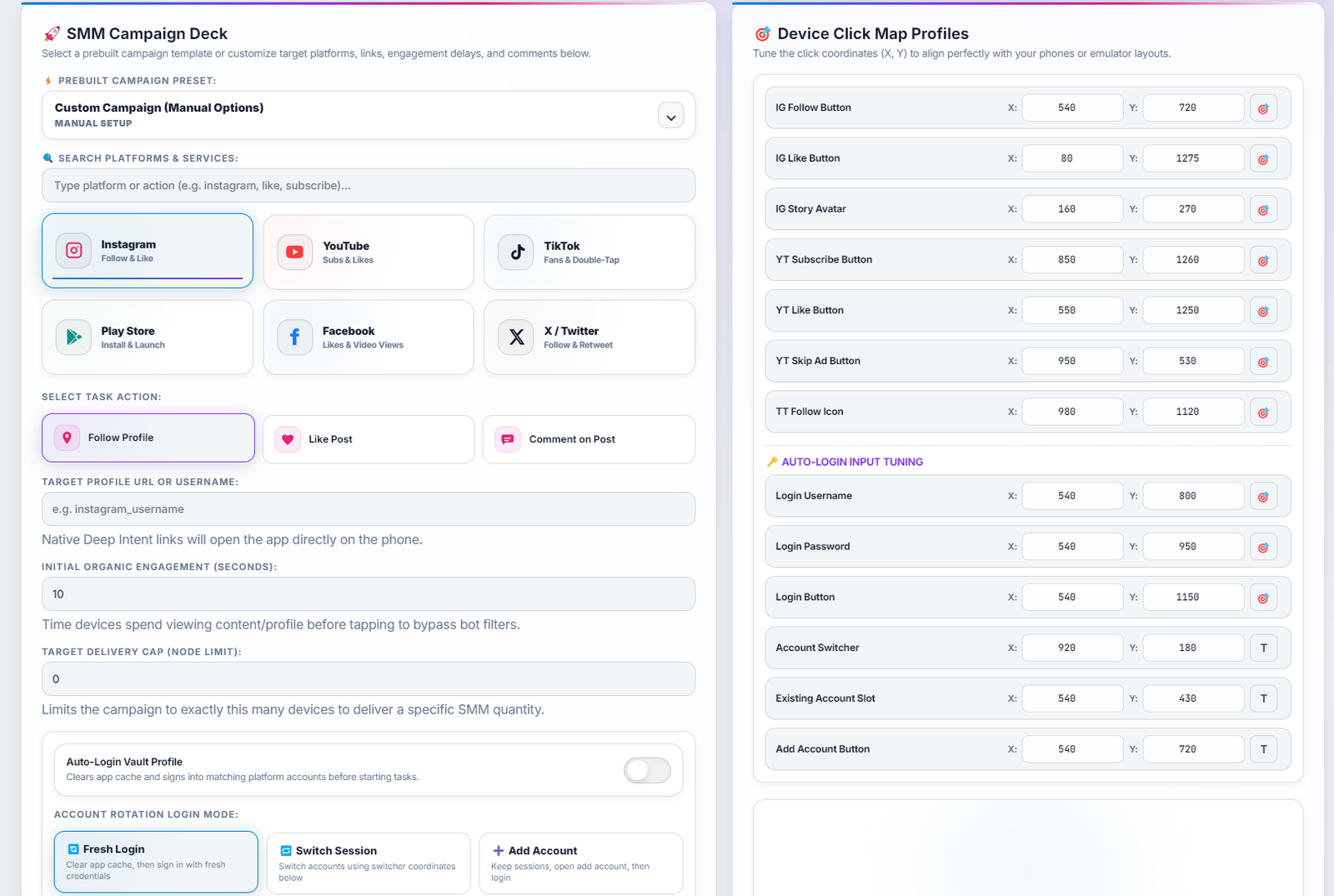
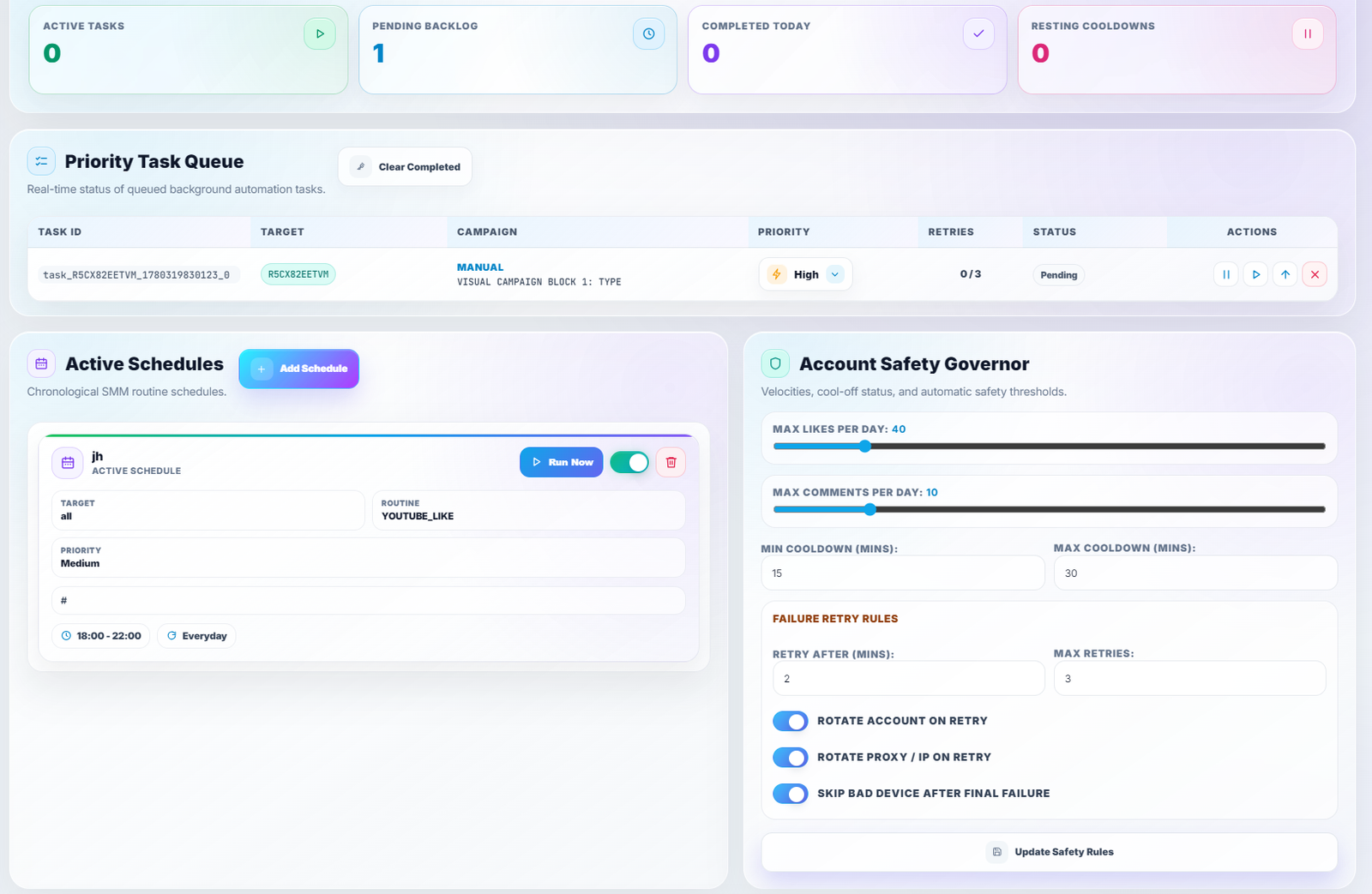
📊 How It Works & Smart Scheduling
The system runs a smart calendar scheduler. It automatically checks your chosen run-times, waits for your phones to be free, and sends your photos, videos, and captions to each phone one-by-one so your accounts look completely natural.
⚡ Requirements
- Rovaflow system app open and active on your computer.
- Your photo and video folders linked up to the scheduler.
- Your social media profiles loaded and ready to go.
🏆 Key Benefits
- Schedule complex tasks to run automatically at night or while you're away.
- Uses smart timing delays between posts to keep your accounts secure and safe.
- Displays clear success messages and notifications once each task is finished.
Activation & How To Use
Create Your Post or Campaign
Open the Task Planner, click 'Create Campaign', write your caption, and choose your action.
Add Your Photos & Videos
Easily drag-and-drop images or videos from the File Manager right into your new campaign window.
Set Your Schedule
Use the visual calendar to pick the exact date and time. Click 'Start Schedule' to let the system handle everything automatically.
8. Visual Step-by-Step Builder
An easy-to-use, drag-and-drop step builder. Create custom phone actions (like Swipe, Tap, or Find Text) in a visual flow chart, and watch live status updates as your phones run them in real-time.
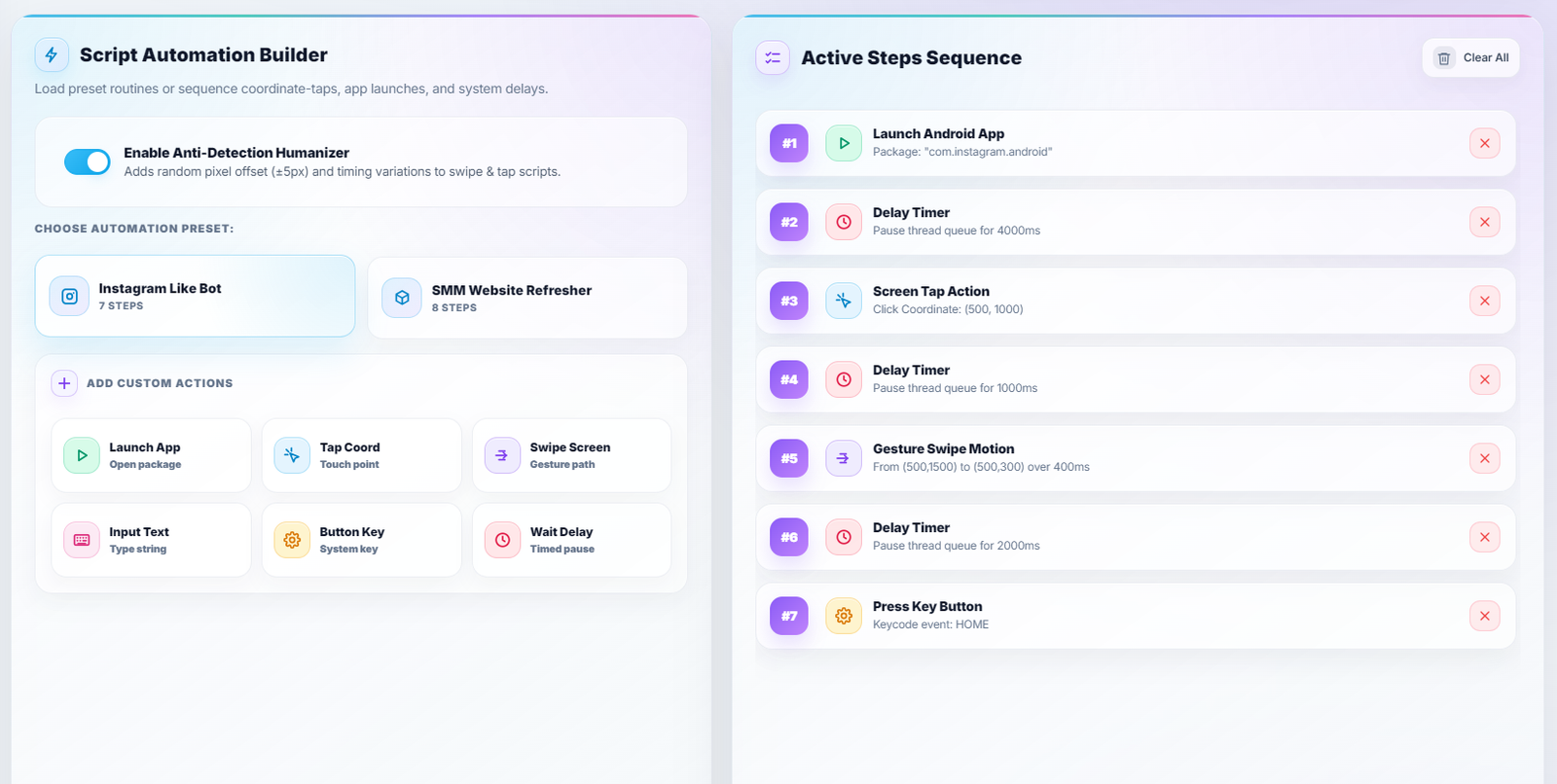
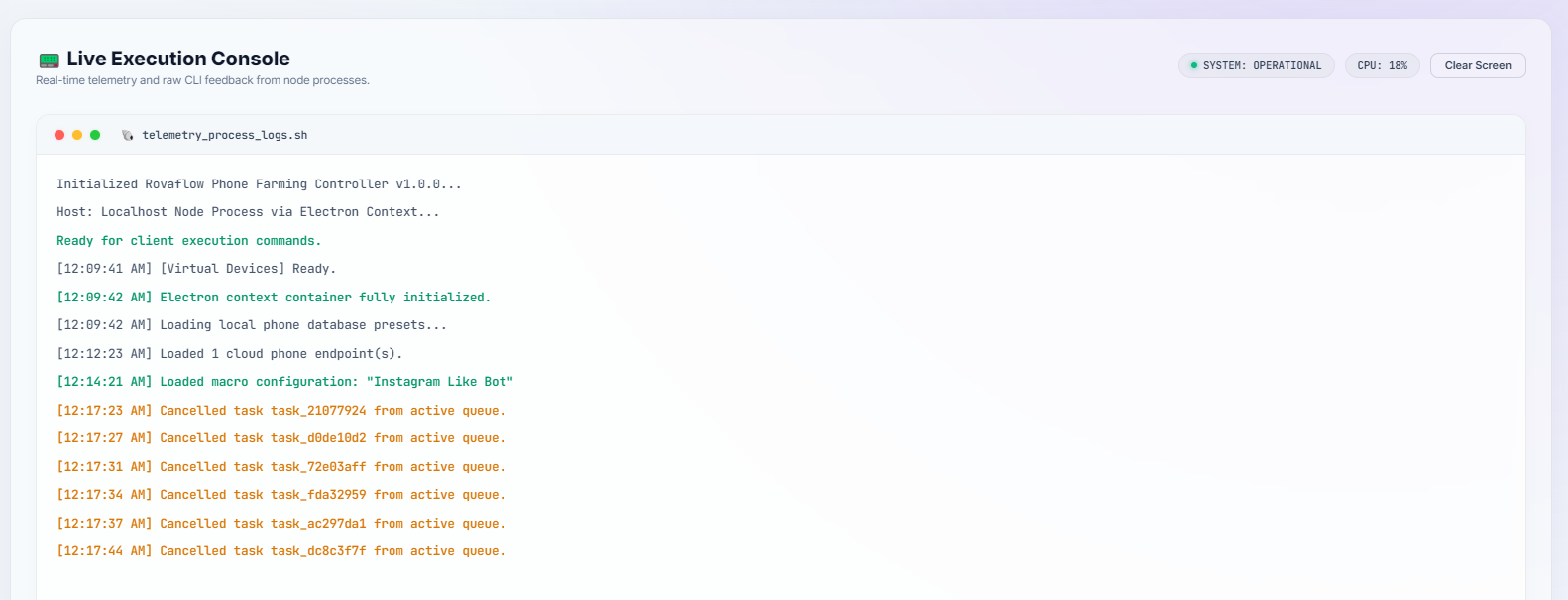
📊 How It Works & Visual Logic
The builder turns your visual flowchart blocks into instant, safe phone commands behind the scenes. It checks your logic rules (such as waiting until a certain word appears on screen), and displays live updates on your control screen.
⚡ Requirements
- Rovaflow Step-by-Step Builder enabled on your computer.
- Phone screen layout matches standard setup configurations.
- On-screen text reading helpers activated on your computer.
🏆 Key Benefits
- Build powerful automated tasks with absolutely zero coding knowledge required.
- See a live log of what your phones are doing, second by second.
- Smart 'If/Else' rules automatically handle warnings or internet slow-downs easily.
Activation & How To Use
Drag and Drop Your Blocks
Choose actions like 'Tap', 'Swipe', or 'Find Text' from the left menu and drag them onto your visual workspace.
Run a Quick Test
Click 'Test Action' on a single phone. Watch its screen to make sure the scrolls and taps happen exactly where you want.
Save and Send to All Phones
Save your custom action sequence, then click 'Run' to deploy it to any number of connected phones with one click.
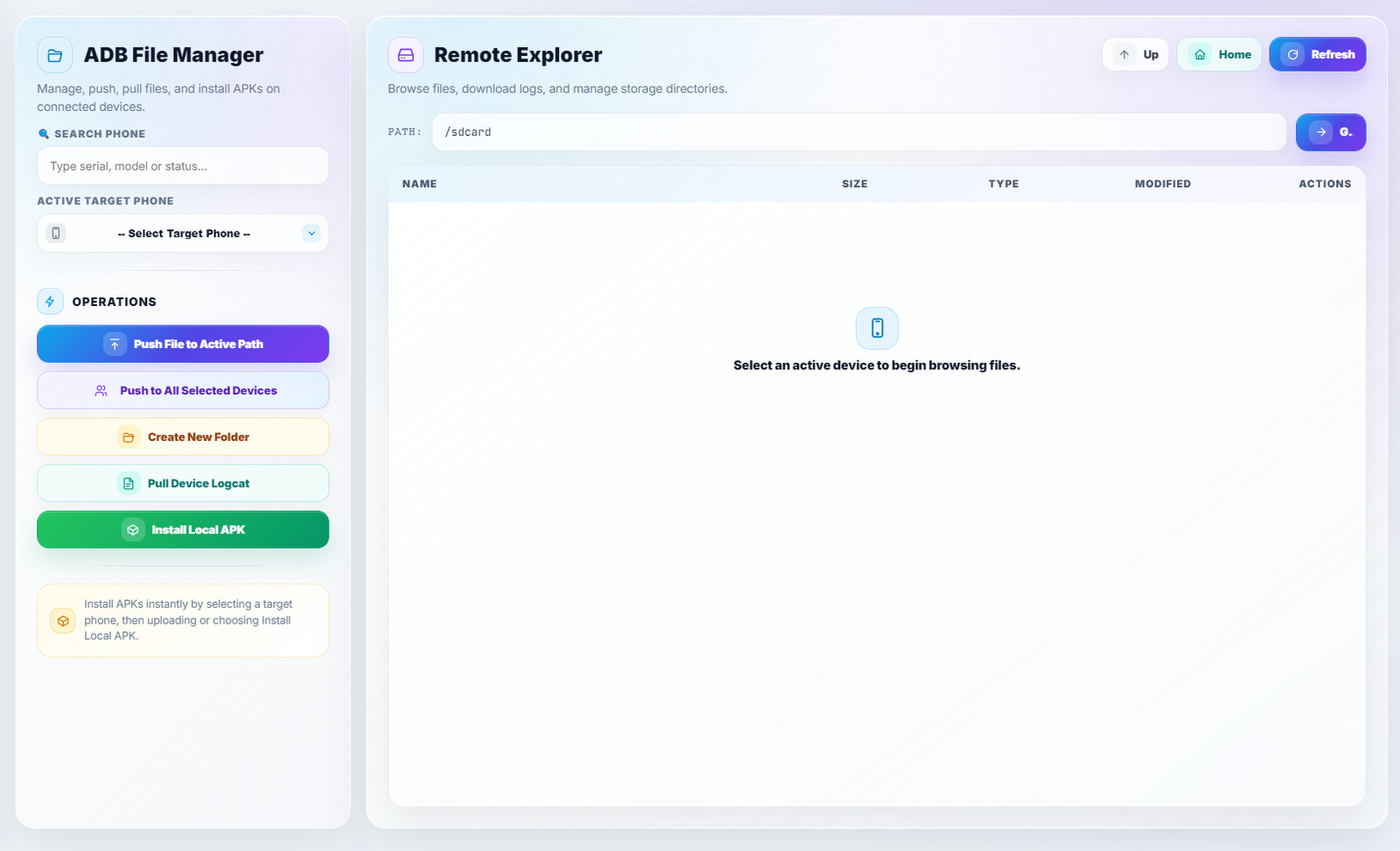
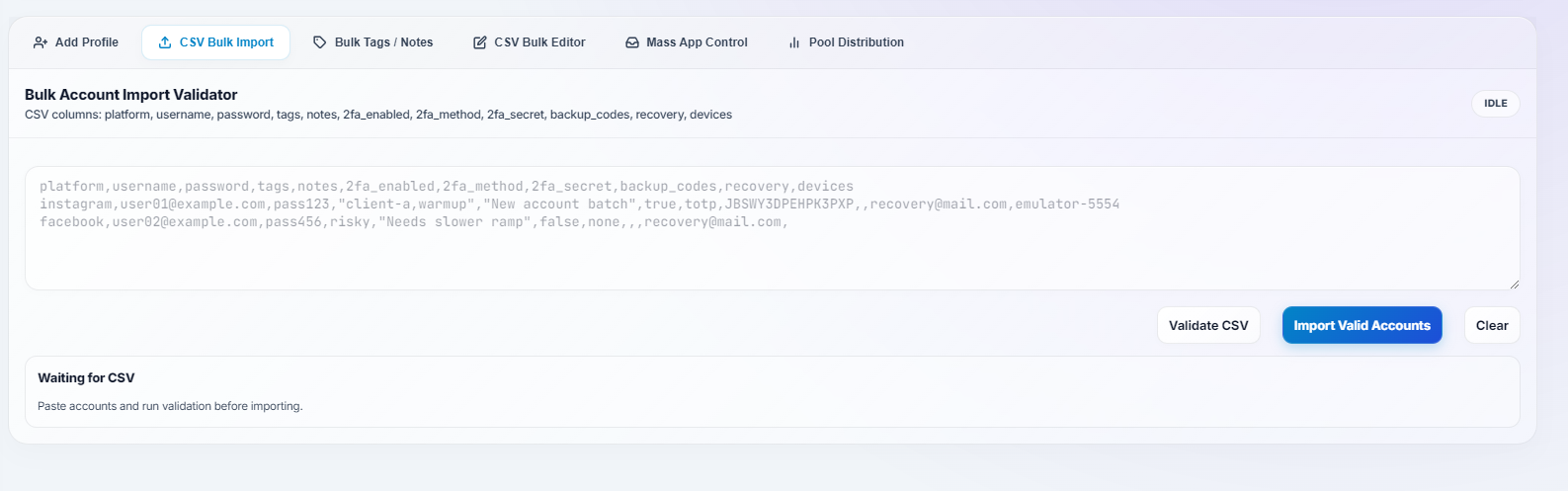
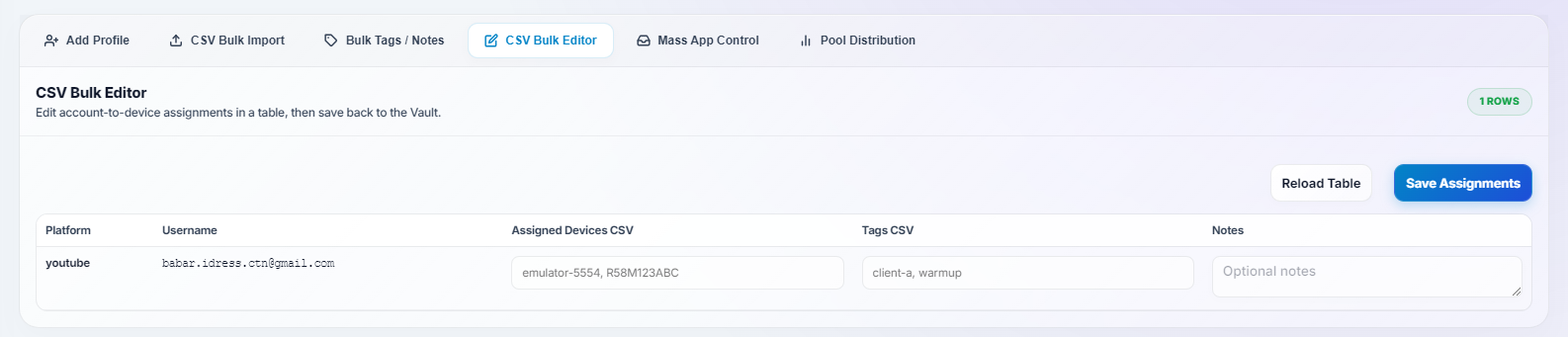
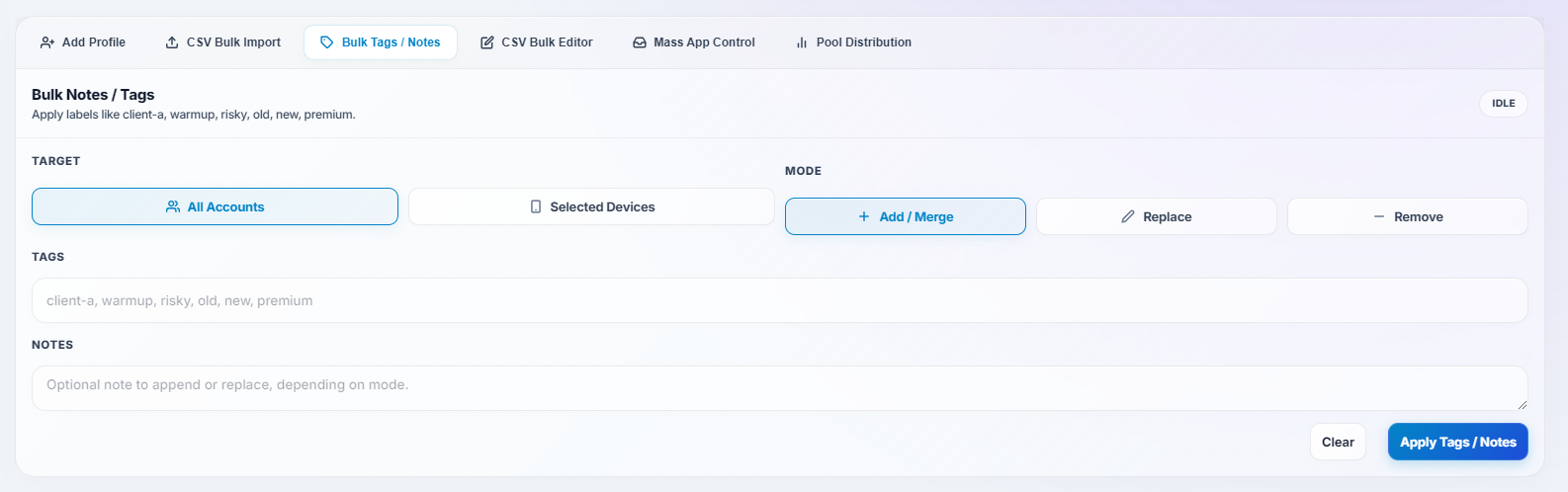
9. Easy File & Spreadsheet Manager
An all-in-one manager to easily sync files, install mobile apps, assign phone tags, and edit spreadsheet data on all your connected devices at once.
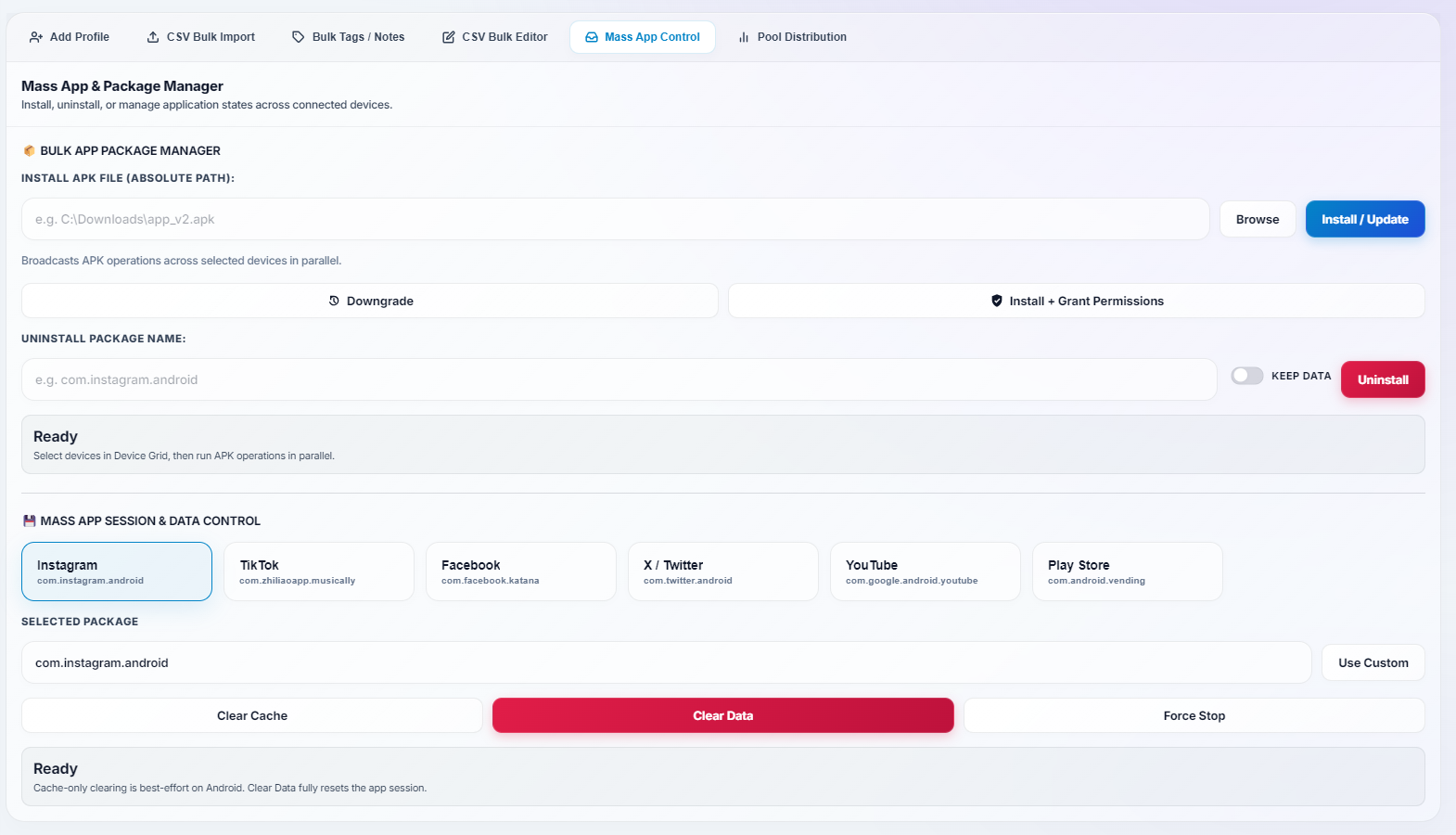
📊 How It Works & Fast File Sync
The file manager links directly to each phone's internal storage. When you send images, videos, or apps in bulk, the system manages files smart and fast to prevent your computer from freezing or slowing down.
⚡ Requirements
- Enough free storage space left on your mobile phones.
- Standard USB file sharing turned on.
- Spreadsheet lists saved in standard text format.
🏆 Key Benefits
- Send files and install apps on 500+ phones in just a few seconds.
- Edit spreadsheets directly in your browser without reloading the page.
- Organize and group your phones easily with custom search tags.
Activation & How To Use
Open Your Phone Files
Open the File Manager, select any phone or group of phones, and browse their photo or file folders.
Install Apps in Bulk
Drag any mobile app installation file (.apk) into the upload box and click 'Install Everywhere' to deploy it instantly.
Organize with Bulk Tags
Select a range of phones, type in a group label (like 'US-Proxy-Phones'), and hit apply to group them in your dashboard.
10. Cloud Phones & Virtual Devices
Instantly expand your setup with virtual phones hosted in the cloud. Spin up remote, cloud-hosted Android phones that connect, boot, and stream directly alongside your physical USB phone racks.
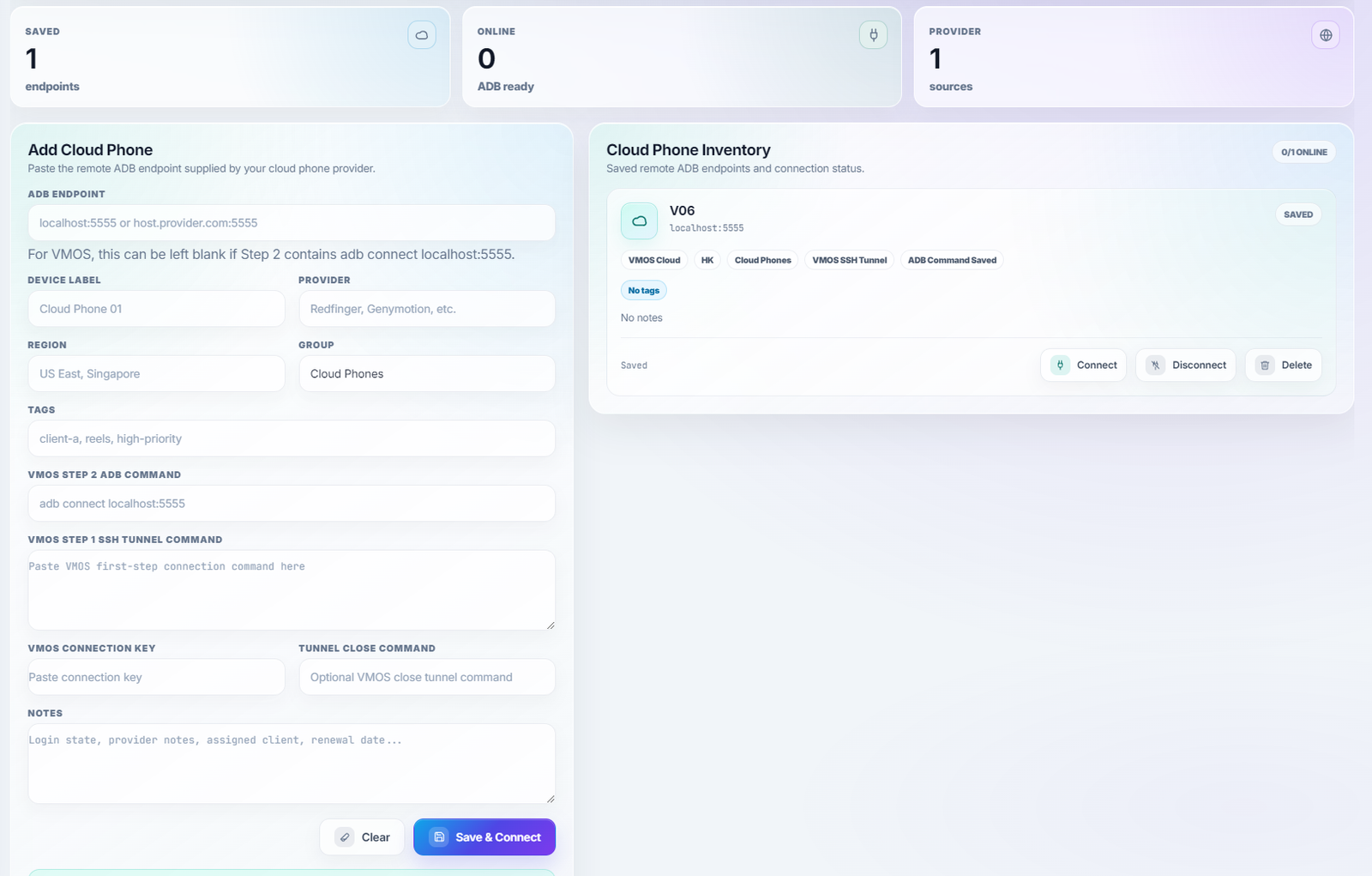
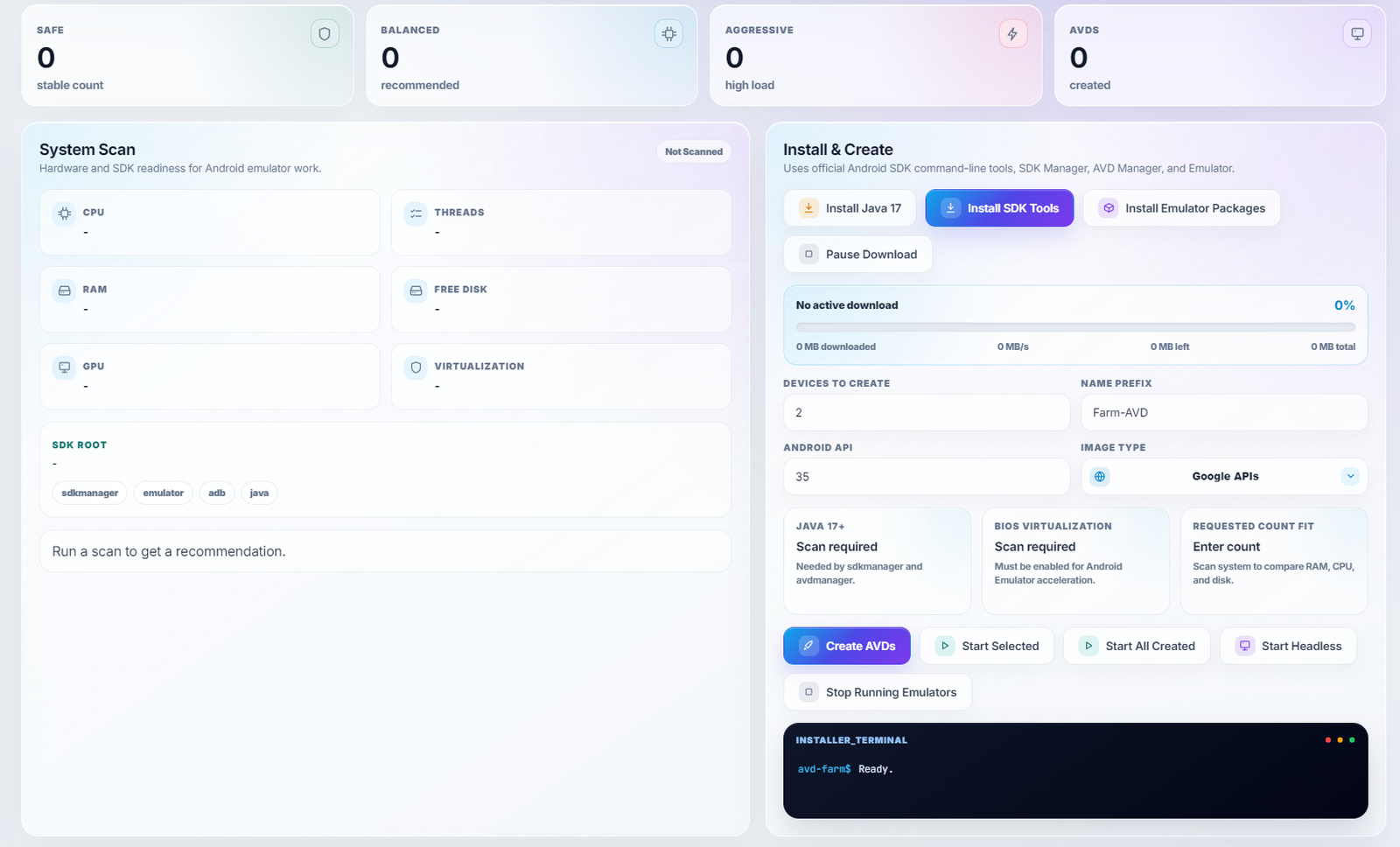
📊 How It Works & Cloud Phones
The system links up with secure cloud providers to boot virtual phone systems. Once active, their live screens and controls are streamed right back to your central dashboard, working exactly like real phones.
⚡ Requirements
- A cloud hosting setup configured to support virtual phone screens.
- Active cloud service accounts (like AWS or Genymotion) linked to your dashboard.
- A Rovaflow subscription plan that supports cloud phone capacity.
🏆 Key Benefits
- Scale your operations up to 10,000 active phones without buying physical hardware.
- Instant phone setups with customizable mobile versions and details.
- Easily run phones hosted in different global regions to match your target audiences.
Activation & How To Use
Link Your Cloud Accounts
Enter your cloud service keys inside the Cloud Phone settings in your Rovaflow dashboard.
Choose Phone Settings
Select your preferred mobile versions, screen sizes, and mobile carrier details.
Launch Your Cloud Phones
Click 'Boot Cloud Phones'. Your new virtual phones will start up instantly and appear on your screen alongside your physical phones.
11. Computer Power & Bypass Help
Manage computer power, organize your phones into separate groups, and use automatic smart-bypass templates to click past annoying warnings or security popups.

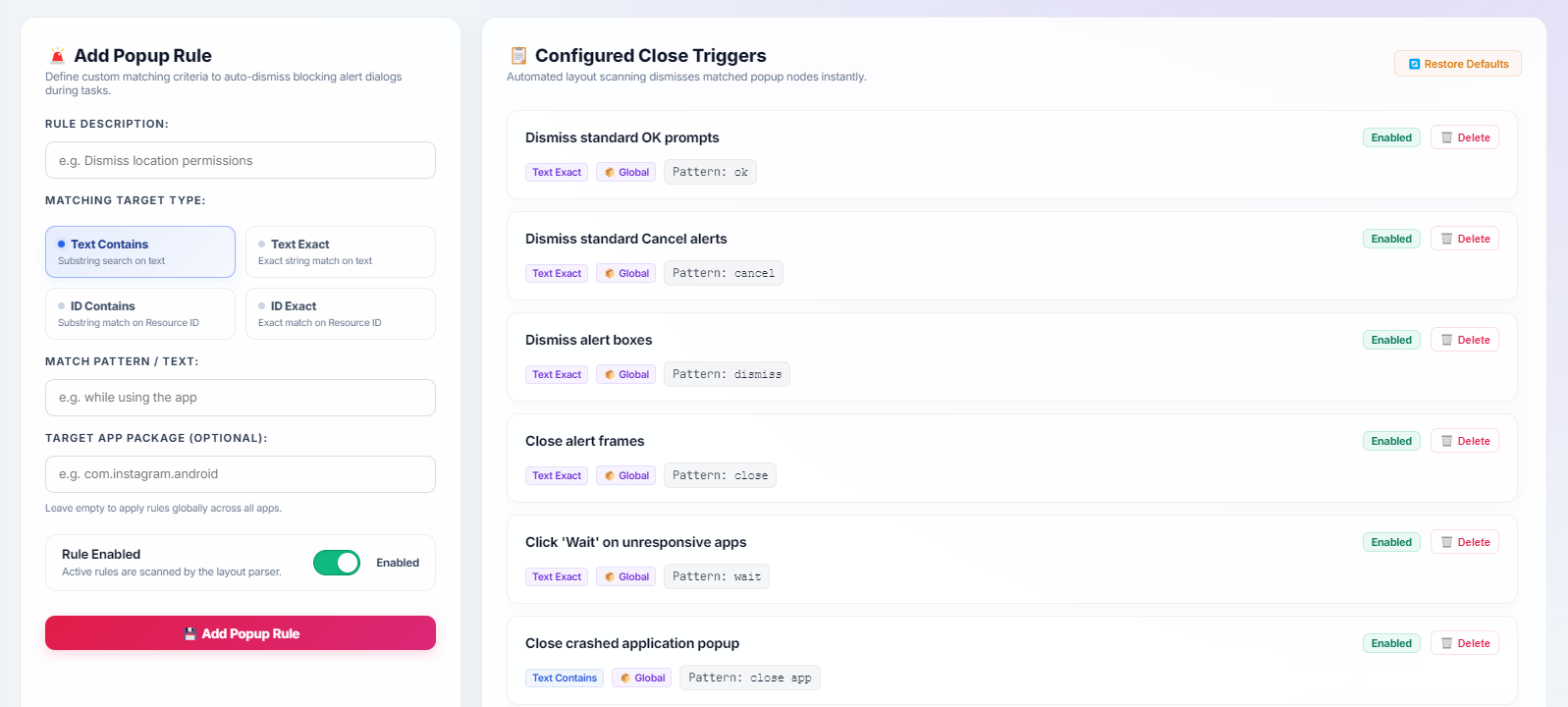
📊 How It Works & Smart Screen Detection
Uses smart on-screen text reading and image detection. When a phone screen displays an annoying security popup, play-store warning, or verification block, the system reads the screen, finds the buttons like 'OK' or 'Skip', and clicks them automatically for you.
⚡ Requirements
- Bypass template library activated in your settings.
- Your phone connection helper updated to version 2.4 or higher.
- An active Rovaflow license key configured.
🏆 Key Benefits
- Keep your computer stable by managing how much memory and speed each phone group can use.
- Instantly click past screen blocks and app warnings without any manual effort.
- Easily keep different groups of physical phones separated for separate clients.
Activation & How To Use
Balance Your Computer Power
Open the Power Distribution settings, select your phone groups, and adjust how much speed or internet they are allowed to use.
Turn On Bypass Helpers
Open the Bypass Popup Library, select standard helpers (like 'Security Bypass' or 'App Warning Skipper'), and click Enable.
Start Automatic Bypassing
Run your tasks. Connected phones will now read screens and click past warnings in the background on their own.
No Matching Guides Found
We couldn't find any results matching your search terms. Please check your spelling or search for alternative terms like 'Proxy', 'Connection', 'Task', or 'Casting'.